.png)
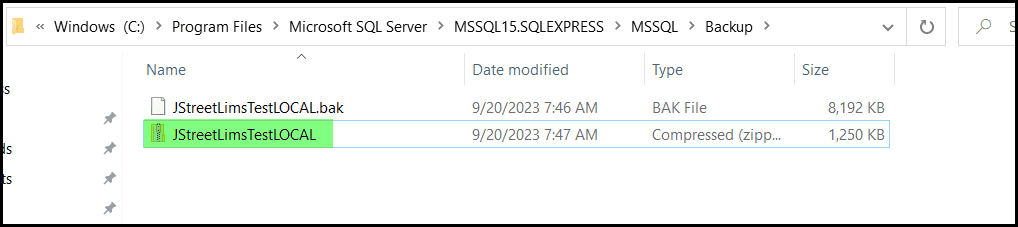
There may be a time where we need you to send us a copy of your database so that we can review an issue you are experiencing. This requires you to create and send us a “.bak” file of your SQL Server Database. This file must be “zipped” or compressed in order to send it to us via email. Below are the steps to create this ZIP file.
Log in to the server using either SSMS (SQL Server Management Studio) or by Remote Desktop Connection (RDP). Once logged in to the server open SQL Server.
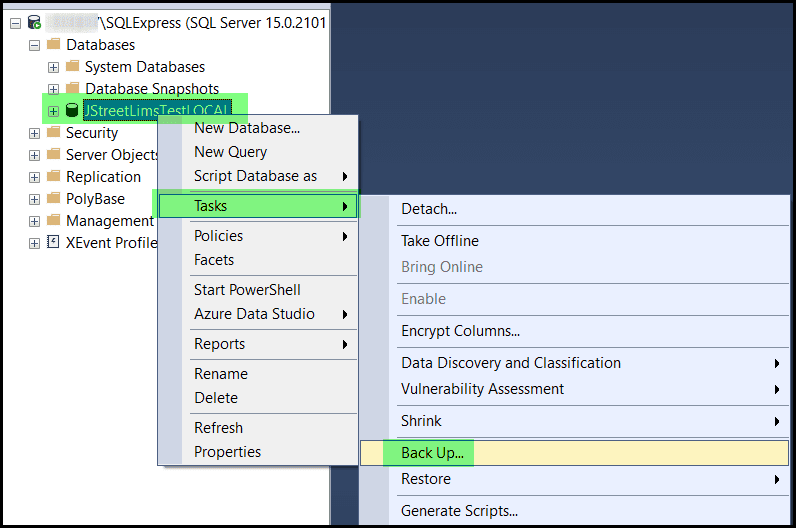
Navigate to the LIMS database and right click>Tasks> Backup:
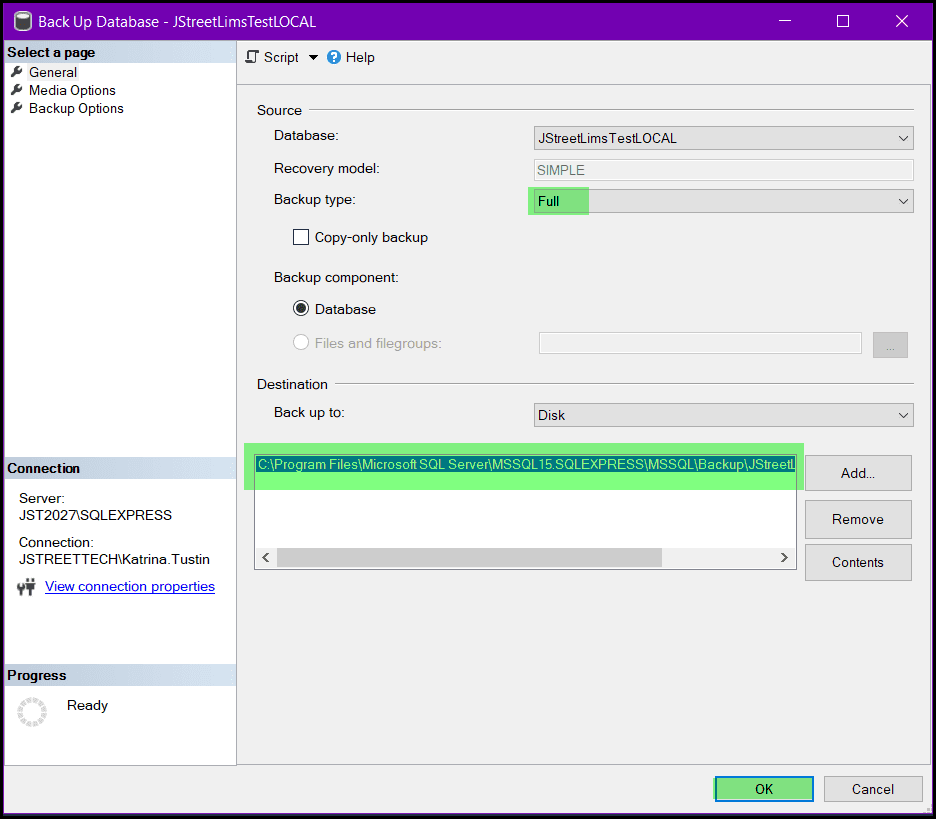
Ensure that the Backup Type is set to “FULL” and take note of the “Back Up To” location (you will need to find the backup that you are creating). Click OK:
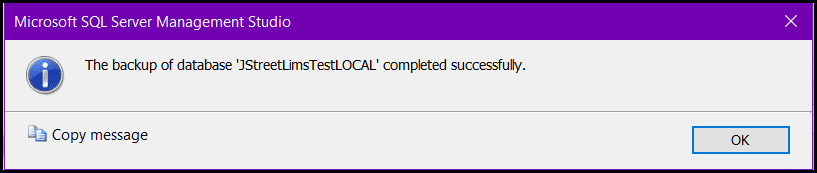
You will see a pop-up message confirming that the backup was successfully created:
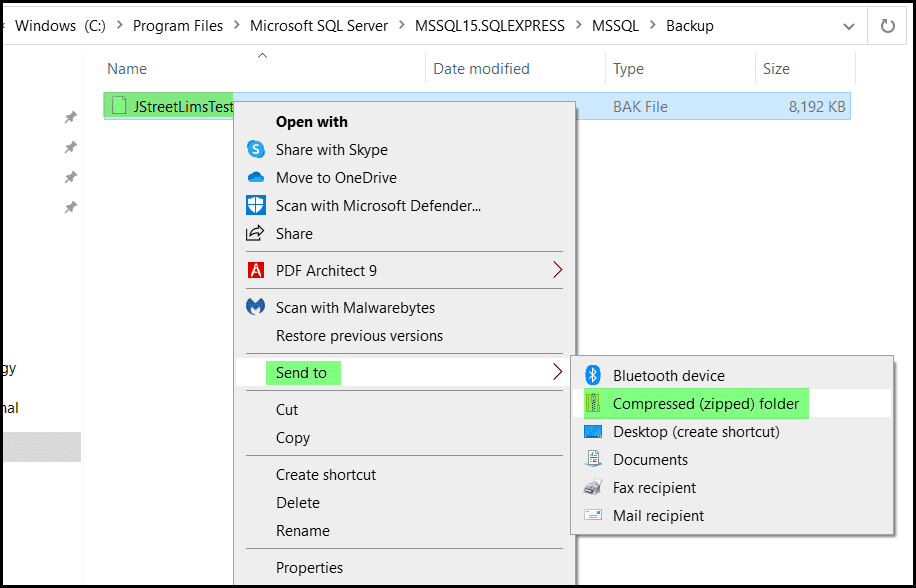
Now you will need to navigate to the location of the backup you created. Open File Explorer (usually a little file folder icon in your task bar on the bottom of your computer screen). Navigate to the backup location and right-click on the backup>Send To> Compressed (ZIP) Folder:
You will now see a “zipped” copy of your backup file. Attach this zipped backup file to your email to us so we can review your database.